Categories
macOS TILs

networkquality

Today I learned that MacOS has an inbuilt command networkquality that can use can you to test your internet speeds without using speedtest.net or fast.com. You type it in the command line and while running it will display the Downlink, Uplink speeds:

$ networkquality
Downlink: 3.958 Mbps, 37 RPM - Uplink: 8.765 Mbps, 37 RPM

You can stop it using Ctrl+C but if you let it run for a few seconds it will end with a summary as shown below

==== SUMMARY ====
Uplink capacity: 7.997 Mbps
Downlink capacity: 5.332 Mbps
Responsiveness: Low (1.071 seconds | 56 RPM)
Idle Latency: 104.417 milliseconds | 576 RPM

I’m thinking this might be a way that maintains privacy without having to visit some ads serving speed testing website.

Categories
macOS TILs

remove exif data on MacOS

I was look at how to remove exif data from photos I had copied to my Mac. I used AppleScript to achieve this:

— Select images to remove EXIF data
set imageFiles to choose file with prompt "Select images to remove EXIF data" of type {"public.image"} with multiple selections allowed
— Loop through each selected image
repeat with imageFile in imageFiles
set imagePath to POSIX path of imageFile
— Create a backup copy (optional)
do shell script "cp " & quoted form of imagePath & " " & quoted form of imagePath & ".backup"
— Remove metadata using sips
do shell script "sips -s formatOptions none " & quoted form of imagePath
end repeat
display dialog "EXIF data removed from selected images." buttons {"OK"} default button "OK"

To use this:

  1. Open Script Editor on your Mac (found in Applications > Utilities).
  2. Paste the script
  3. Hit the run button

This script lets you select one or more images, uses the sips command with the -s formatOptions none option to remove the metadata. It makes a backup copy of the image with .backup extension.

Categories
macOS TILs

Console.app

Today while reading this blog, https://objective-see.org/blog/blog_0x7B.html, by the amazing Patrick Wardle, I learned about the MacOS Console.app

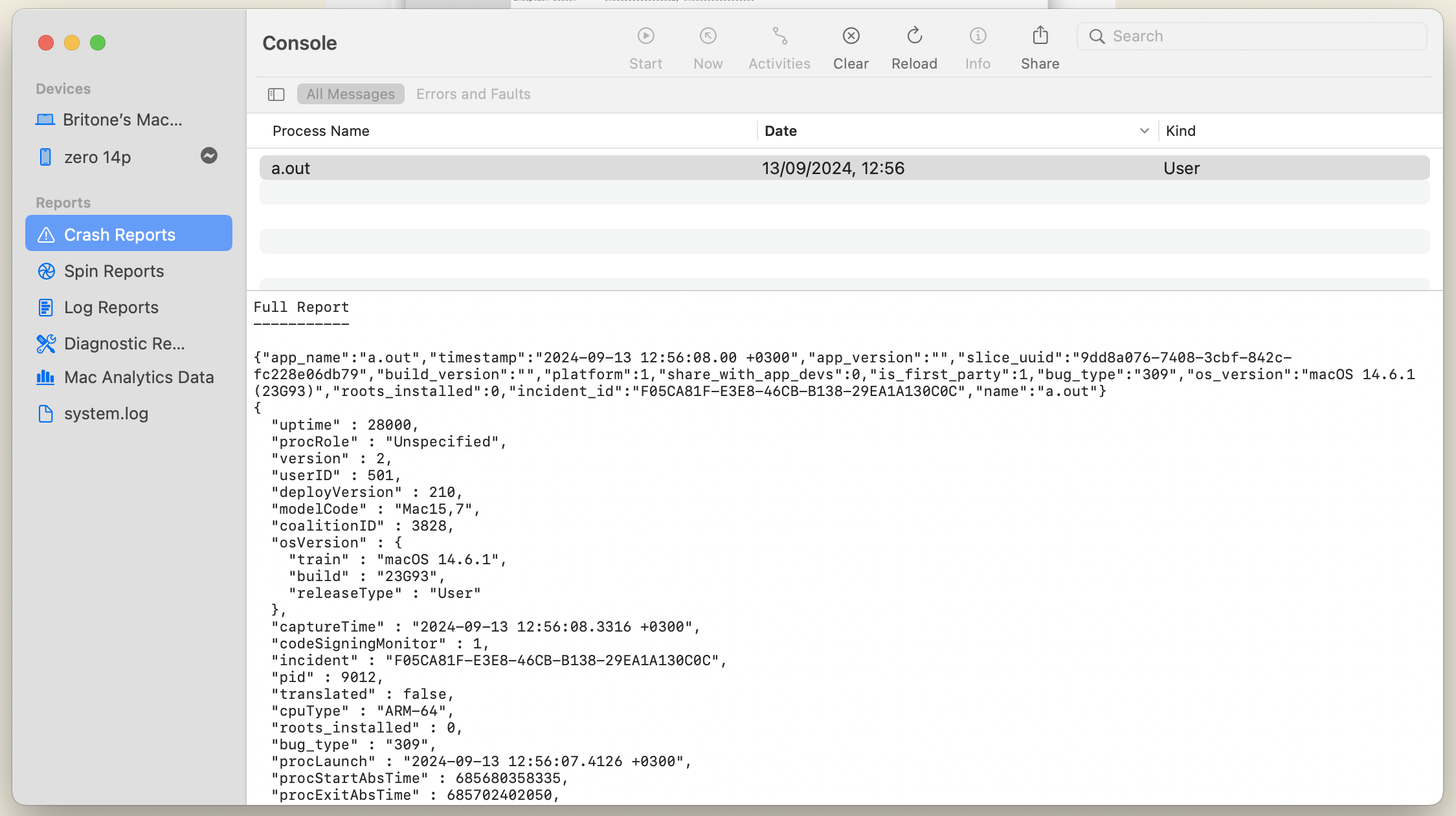
Console app allows you to see reports generated on you mac and iPhone. These reports include: crash, spin, log, diagnostic, mac analytics and system log reports. See screenshot below with the example in the blog post mentioned above. Here there is code and screenshot of the crash report via the Console app:

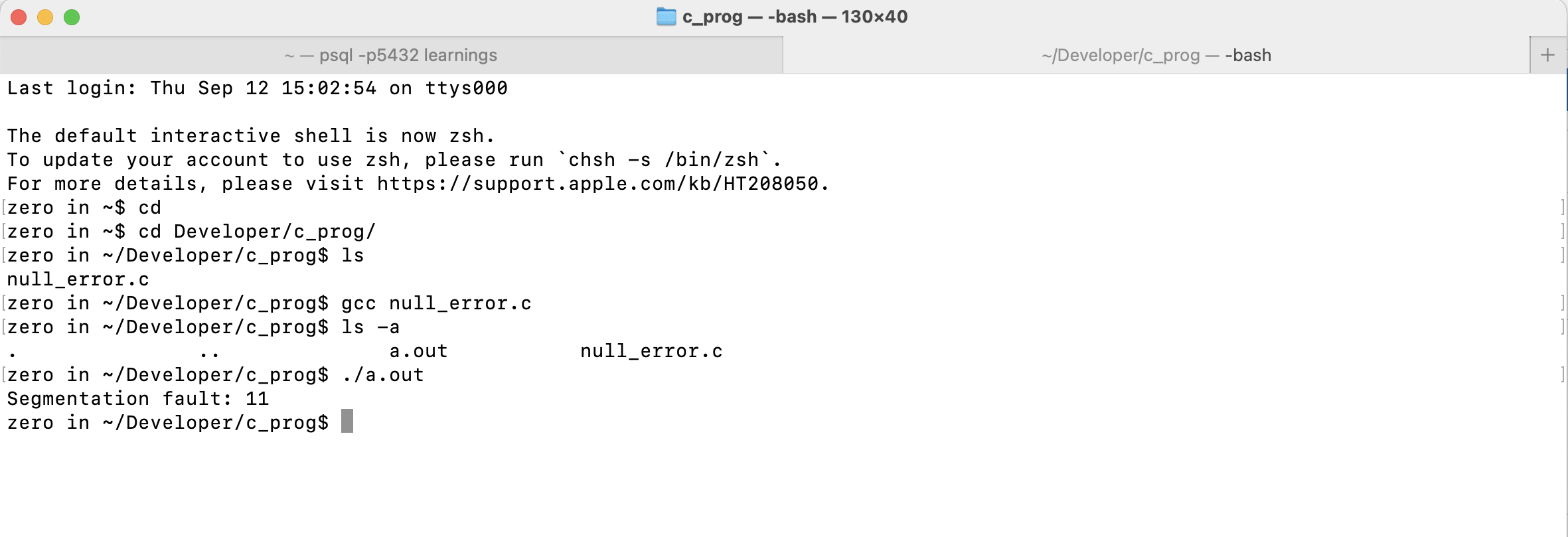
This is what you see on the terminal when you run the compile and run ./a.out

Console app has a lot of details well summarised plus the full report in json format

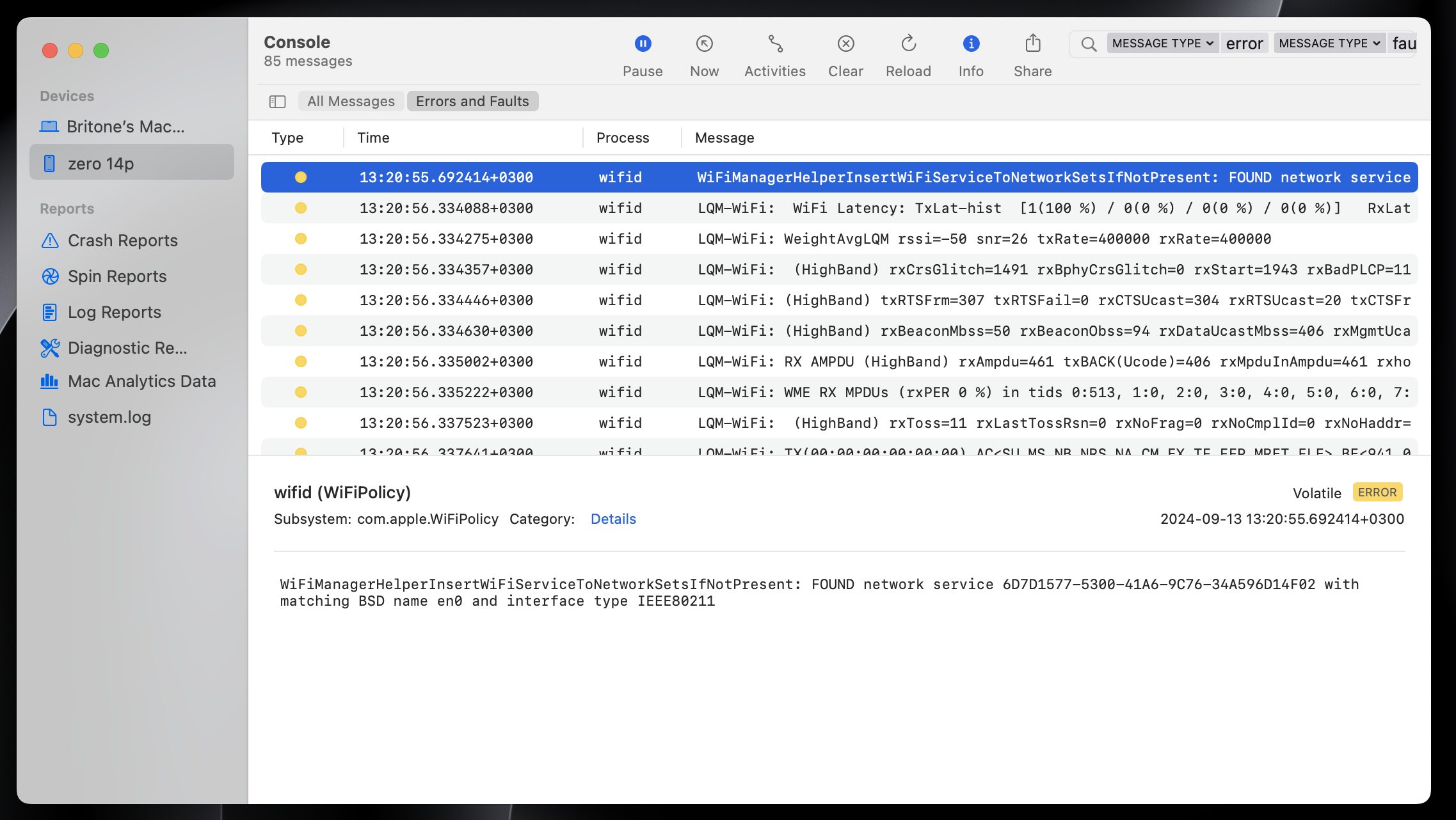
You can also see reports from your iPhone. See below screenshot of wifid process on the iPhone

These reports are important when you want to understand what is really going on on your devices. I suggest reading the blog post I linked at the beginning https://objective-see.org/blog/blog_0x7B.html